> ## Documentation Index
> Fetch the complete documentation index at: https://docs.useraven.ai/llms.txt
> Use this file to discover all available pages before exploring further.
# Introduction
> AI meeting copilot with real-time transcription, echo cancellation, and a stealth overlay invisible to screen sharing.
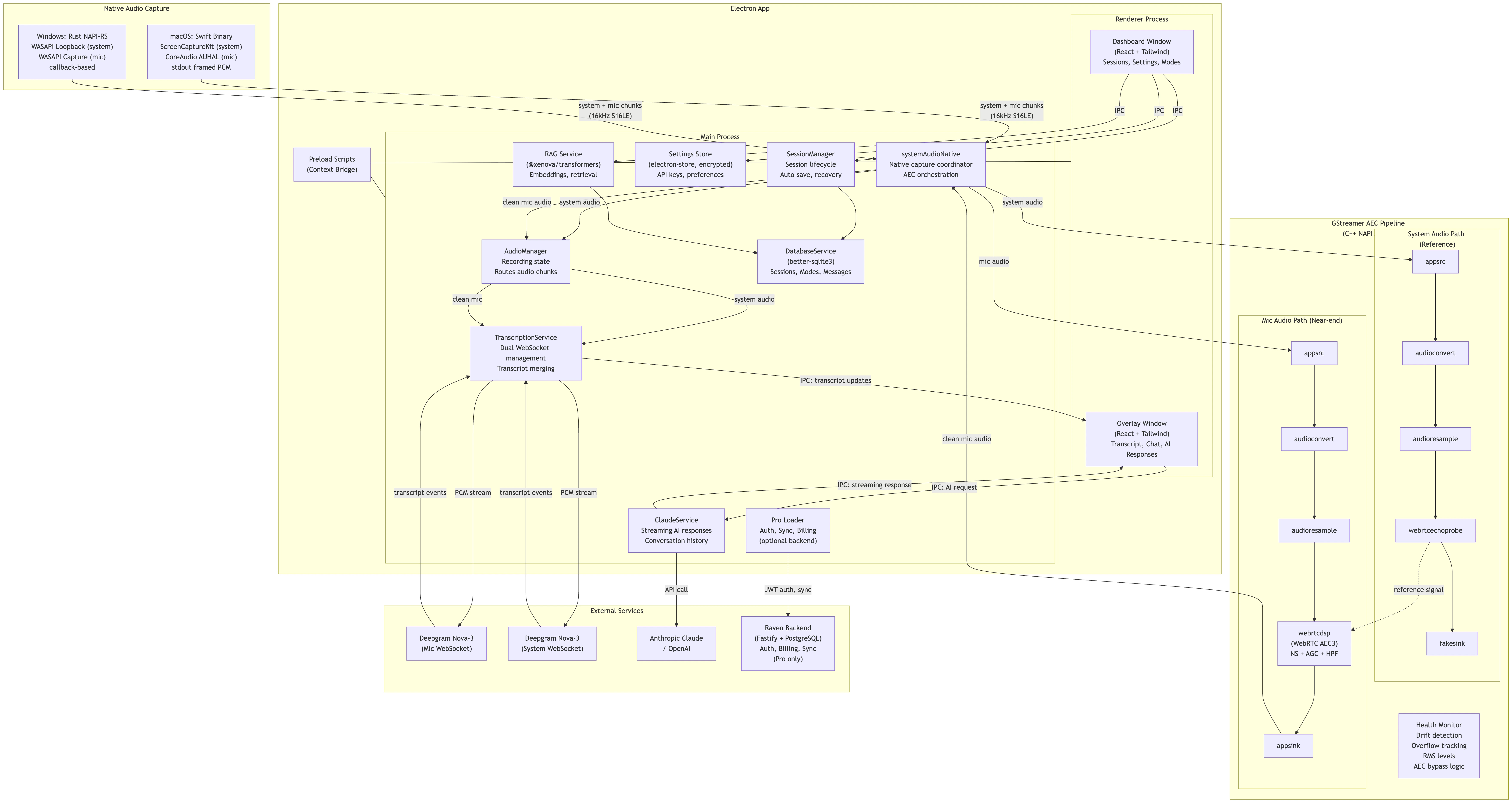 Raven is an AI-powered meeting copilot that runs on your desktop. It captures both sides of any conversation, cancels echo so voices don't bleed between streams, transcribes everything in real-time, and gives you AI assistance with full context - all while staying completely invisible to screen sharing.
## Get Raven
Download the app for macOS or Windows. Sign in and start using Raven immediately - no setup required.
Clone the open-source repo, bring your own API keys, and build Raven yourself.
## Features
Captures system audio and microphone simultaneously on macOS and Windows using native platform APIs.
Built-in echo cancellation prevents the remote speaker's voice from leaking into your microphone stream.
Live speech-to-text with separate speaker labels for "You" and "Them". Supports 20+ languages.
Get context-aware help from Claude or GPT during meetings - quick actions, follow-ups, recaps, and more.
Press `Cmd+Enter` to capture your screen and send it to the AI. Solve problems, interpret slides, or analyze anything visible.
Completely invisible to Zoom, Meet, Teams, and Discord screen sharing. Drag, resize, and interact while staying hidden.
Your data stays on your machine. Optional incognito mode for sessions you don't want saved.
Customizable AI profiles — Interview, Sales, Meeting Notes, Job Search, Learning, Coding Interview — plus document upload (RAG) for extra context.
Every session is saved with AI-generated titles and summaries. Search across all past meetings by keyword.
Transcription in English, Hindi, Spanish, French, German, Japanese, Korean, Chinese, Arabic, and more. Output language configurable independently.
Auto-detects Zoom, Teams, and Meet meetings on Apple Silicon Macs. Post-meeting insights including summaries, action items, and sentiment analysis.
Sessions, modes, and documents sync across devices. Sign in with Google or email.
## How It Works
Click the record button on the overlay or press `Cmd+R`.
Raven captures both system audio (what you hear) and your microphone simultaneously using native platform APIs.
Both streams pass through an echo cancellation pipeline so the remote speaker's voice doesn't contaminate your mic signal.
Clean audio is transcribed in real-time. Your speech appears as "You" and the remote speaker as "Them".
Ask the AI for help at any time - it has full context from the conversation. Press `Cmd+Enter` to include a screenshot of your screen for visual context.
## Platform Support
| Platform | Status |
| ------------------------------------- | ----------------- |
| **macOS 12+** (Intel & Apple Silicon) | Fully supported |
| **Windows 10/11** | Supported |
| Linux | Not yet supported |
## Keyboard Shortcuts
| Action | Shortcut |
| --------------------------- | ----------------------- |
| Toggle Overlay | `Cmd + \` |
| Start/Stop Recording | `Cmd + R` |
| AI Assist (with screenshot) | `Cmd + Enter` |
| Clear Conversation | `Cmd + Shift + R` |
| Move Overlay | `Cmd + Arrow Keys` |
| Scroll Overlay | `Cmd + Shift + Up/Down` |
On Windows, replace `Cmd` with `Ctrl`.
## Next Steps
Learn how recording, transcription, and AI assistance work.
Compare the Pro app with the open-source version.
Set up the open-source version on macOS or Windows.
Understand the repo structure and how to contribute.
Raven is an AI-powered meeting copilot that runs on your desktop. It captures both sides of any conversation, cancels echo so voices don't bleed between streams, transcribes everything in real-time, and gives you AI assistance with full context - all while staying completely invisible to screen sharing.
## Get Raven
Download the app for macOS or Windows. Sign in and start using Raven immediately - no setup required.
Clone the open-source repo, bring your own API keys, and build Raven yourself.
## Features
Captures system audio and microphone simultaneously on macOS and Windows using native platform APIs.
Built-in echo cancellation prevents the remote speaker's voice from leaking into your microphone stream.
Live speech-to-text with separate speaker labels for "You" and "Them". Supports 20+ languages.
Get context-aware help from Claude or GPT during meetings - quick actions, follow-ups, recaps, and more.
Press `Cmd+Enter` to capture your screen and send it to the AI. Solve problems, interpret slides, or analyze anything visible.
Completely invisible to Zoom, Meet, Teams, and Discord screen sharing. Drag, resize, and interact while staying hidden.
Your data stays on your machine. Optional incognito mode for sessions you don't want saved.
Customizable AI profiles — Interview, Sales, Meeting Notes, Job Search, Learning, Coding Interview — plus document upload (RAG) for extra context.
Every session is saved with AI-generated titles and summaries. Search across all past meetings by keyword.
Transcription in English, Hindi, Spanish, French, German, Japanese, Korean, Chinese, Arabic, and more. Output language configurable independently.
Auto-detects Zoom, Teams, and Meet meetings on Apple Silicon Macs. Post-meeting insights including summaries, action items, and sentiment analysis.
Sessions, modes, and documents sync across devices. Sign in with Google or email.
## How It Works
Click the record button on the overlay or press `Cmd+R`.
Raven captures both system audio (what you hear) and your microphone simultaneously using native platform APIs.
Both streams pass through an echo cancellation pipeline so the remote speaker's voice doesn't contaminate your mic signal.
Clean audio is transcribed in real-time. Your speech appears as "You" and the remote speaker as "Them".
Ask the AI for help at any time - it has full context from the conversation. Press `Cmd+Enter` to include a screenshot of your screen for visual context.
## Platform Support
| Platform | Status |
| ------------------------------------- | ----------------- |
| **macOS 12+** (Intel & Apple Silicon) | Fully supported |
| **Windows 10/11** | Supported |
| Linux | Not yet supported |
## Keyboard Shortcuts
| Action | Shortcut |
| --------------------------- | ----------------------- |
| Toggle Overlay | `Cmd + \` |
| Start/Stop Recording | `Cmd + R` |
| AI Assist (with screenshot) | `Cmd + Enter` |
| Clear Conversation | `Cmd + Shift + R` |
| Move Overlay | `Cmd + Arrow Keys` |
| Scroll Overlay | `Cmd + Shift + Up/Down` |
On Windows, replace `Cmd` with `Ctrl`.
## Next Steps
Learn how recording, transcription, and AI assistance work.
Compare the Pro app with the open-source version.
Set up the open-source version on macOS or Windows.
Understand the repo structure and how to contribute.